Usually MWA entry point is a simple card on the dashboard, with configurable Title, Background Image or Color and Icon:
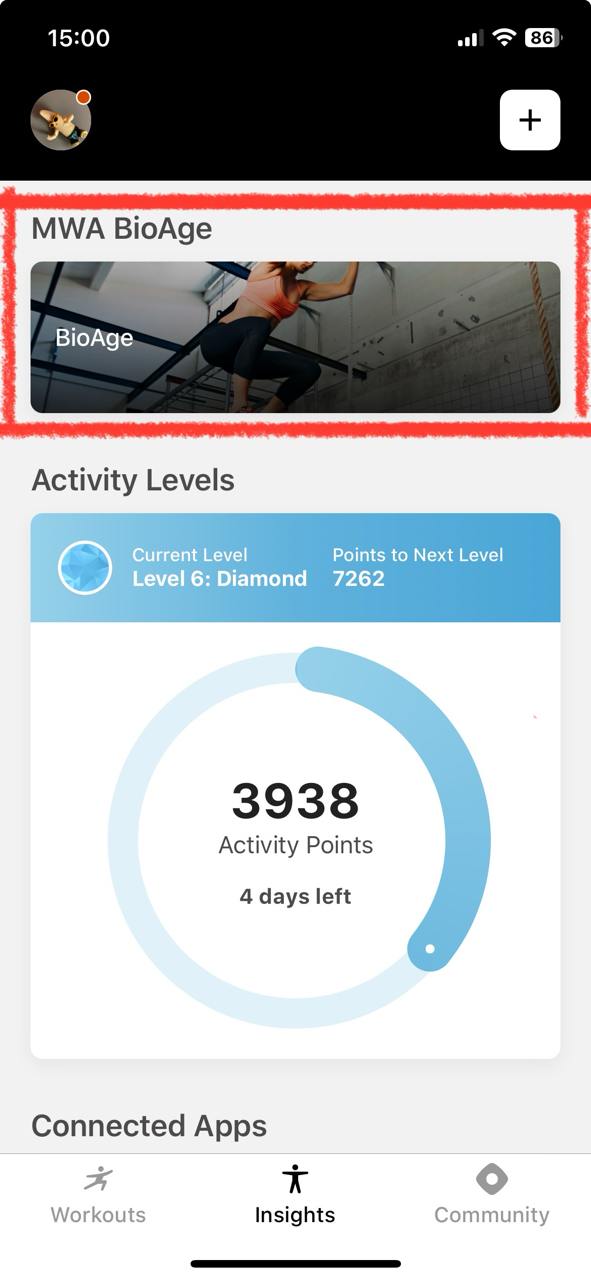
Now it is possible to create a custom MWA widget entry point and keep close to native user experience at the same time. Here is the example of the widget, created completely using MWA:
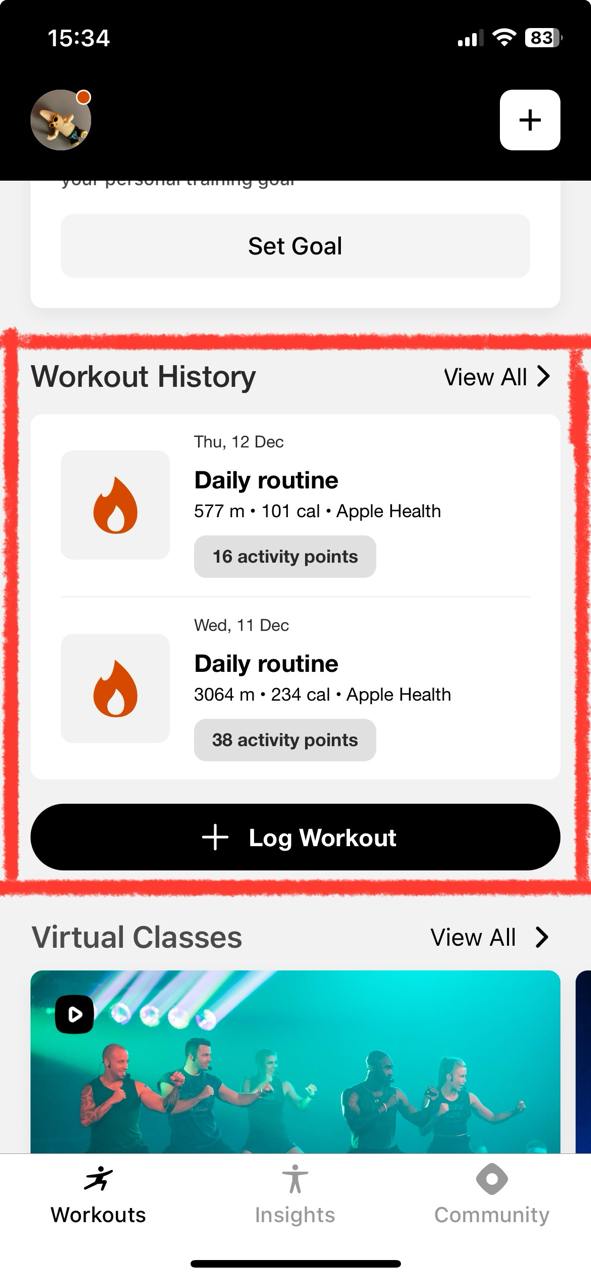
Here is a step-by-step guide explaining the nuances of how it was built, and source code as a reference could be found here:
It is important to keep the loading of widgets on the dashboard as smooth as possible. To achieve this, native apps support displaying custom loading skeletons.
A single shared loading skeleton is used by both the web app and the native app. It is implemented and maintained exclusively on the MWA side. The native app simply accesses the skeleton file and displays it, provided it is available, until a command to hide it is invoked.
Here is example of skeleton html for custom widget.
It is IMPORTANT to place this file in the assets folder under a specific directory. The path to the HTML file should follow this format: /widgets-skeletons/<the route to the page where the widget is placed>.html
For example, in the mwa-reference project, the skeleton is saved under /widgets-skeletons/workouts/latest-activity-widget.html. The route URL for the widget’s page is /workouts/latest-activity-widget, as you can see, it matches the path in the assets folder.
The resulting html file should appear in your build under specific folder:
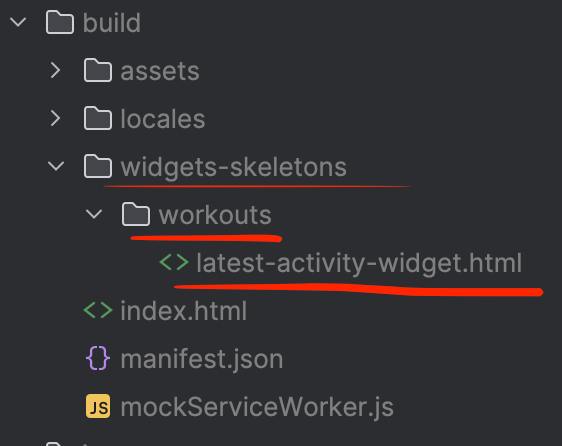
The native app will check the web app’s assets in the /widgets-skeletons folder and look for a file that matches the startingRoute configured for the feature.
If the corresponding html file exists web build, the skeleton is displayed automatically when the widget begins loading.
To hide the loading skeleton, MWA must notify the native app that the data loading from the backend API is complete. This is achieved using the contentLoadingDidFinish command.
See here how it can be done from the source code.
The native app does not know the height of the content inside the WebView, and it cannot be dynamically adjusted to fit the content’s height. That's why MWA has to tell the native app what should be the height of the respective widget on dashboard
Default widget height set by the native app is 300px. You can change this default value for a corresponding widget by the specific startingRoute. The configuration is similar to sharing a skeleton html file. Place heights.json file under widgets-skeletons folder inside public directory so it's available in the resulting build by the following path /widgets-skeletons/heights.json. The json file has to have the following structure, where <startingRoutePath> is the starting route to your custom widget and number is the height of the widget in pixels.
{
  "<startingRoutePath>": number
}
Example of the heights.json file
Not all widgets may have a static height. It is possible that, depending on the API result, the height of the widget content may vary. That’s why there is a separate command to dynamically adjust the height: contentLoadingDidFinish.
Here is an example of how to use this command.
Use openFeature event with specified startingRoute to open another page of the app but on the full screen.